

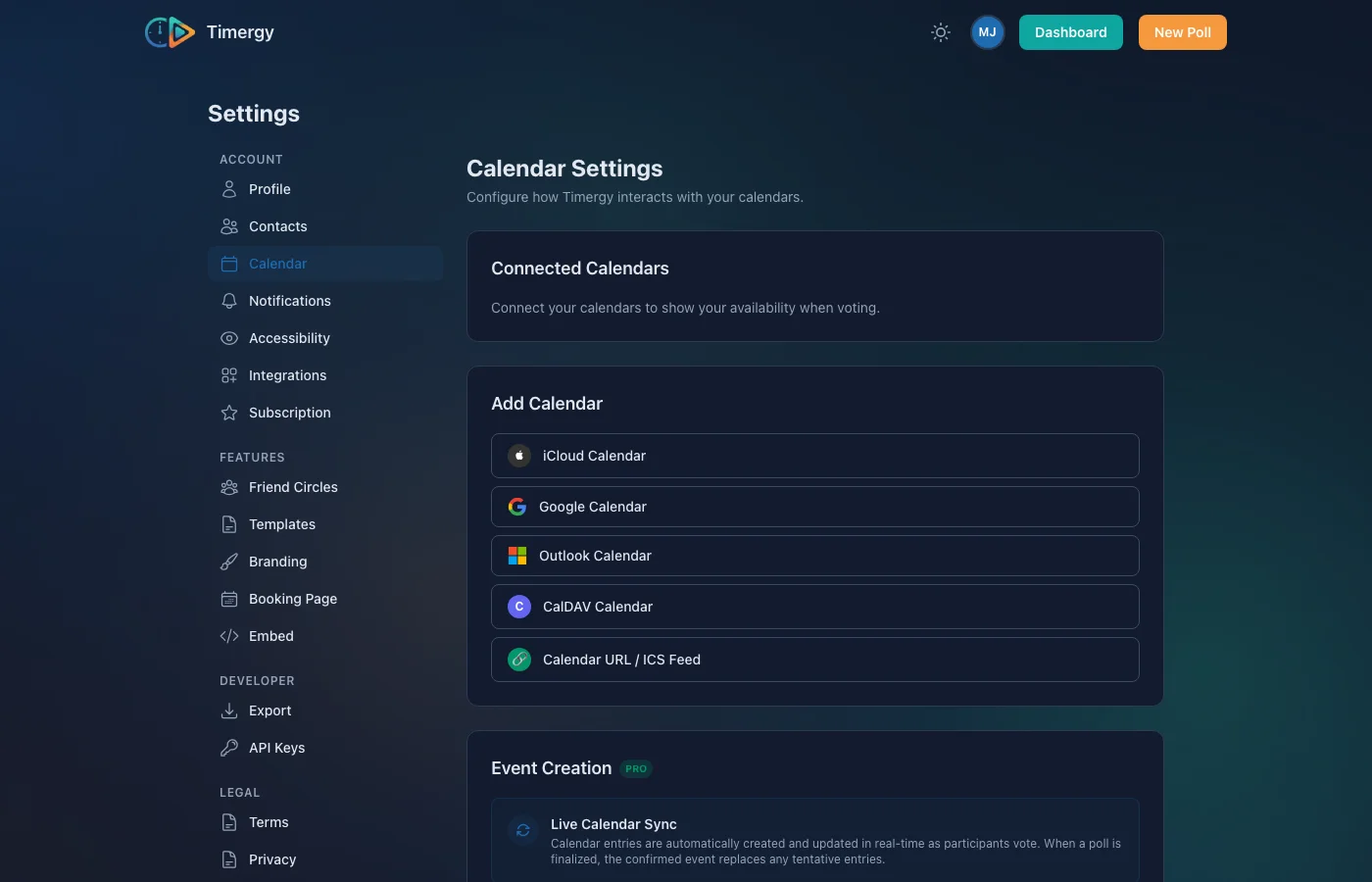
TL;DR Timergy supports five calendar providers: Google Calendar, Microsoft Outlook, iCloud, generic CalDAV and ICS feeds. All are free. Conflicts are detected automatically, votes are pre-filled, and confirmed events are written back to your calendar.
Scheduling a meeting is easy when you can see everyone’s availability at a glance. That is exactly what Timergy’s calendar integration does. In this guide we walk through every supported provider, explain how conflict detection works, and show you how to get the most out of calendar sync scheduling.
Five Providers, One Workflow
No matter which calendar you use, the experience inside Timergy stays the same. Connect once, and every poll you vote on will highlight time slots that clash with your existing events. Here is what each provider offers.
Google Calendar
Google Calendar integration uses OAuth 2.0. When you connect, Timergy requests read and write access to your calendars. The app is verified by Google, so you will see Timergy’s name and logo on the consent screen instead of a scary “unverified app” warning.
Multi-calendar support is built in. If you keep separate calendars for work, personal life and side projects, Timergy queries all of them. Conflicts from any calendar are surfaced during voting.
Setup takes about ten seconds: click “Connect Google Calendar” in your settings, authorize, done.
Microsoft Outlook
For Outlook users, Timergy connects through the Microsoft Graph API. Both personal Microsoft accounts and work/school (Microsoft 365) accounts are supported. The Azure app registration is configured as multi-tenant, so IT admins do not need to approve anything special.
Once connected, Timergy reads your Outlook calendars and writes confirmed events back, just like with Google. If your organization uses Exchange Online, this is the integration for you.
iCloud
Apple does not offer a public OAuth API for iCloud Calendar, so Timergy uses CalDAV with an app-specific password. Here is how to set it up:
- Go to appleid.apple.com and sign in.
- Under Sign-In and Security, select App-Specific Passwords.
- Generate a new password and give it a name like “Timergy”.
- In Timergy, choose iCloud as your provider and paste the app-specific password.
That is it. Timergy connects to Apple’s CalDAV servers and pulls in all your iCloud calendars. Your main Apple ID password is never stored.
Generic CalDAV
If you self-host your calendar or use a privacy-focused provider, generic CalDAV support has you covered. Tested providers include:
- Nextcloud (most popular self-hosted option)
- Synology Calendar (built into Synology NAS)
- Fastmail (CalDAV with app password)
- Radicale, Baikal, and other standards-compliant servers
You just need your CalDAV URL, username and password. Timergy stores credentials encrypted with AES-256-GCM, so they are safe at rest.
ICS Feeds
Some calendars only expose a read-only ICS feed URL. Timergy can import those too. This works with virtually any calendar application that offers an .ics subscription link. ICS feeds are polled periodically, so conflicts stay up to date. Because ICS is read-only, Timergy cannot write events back to these calendars.
Conflict Detection and Vote Pre-fill
Once a calendar is connected, every poll you open will show your existing events alongside the proposed time slots. Busy slots are marked with a red indicator so you can spot conflicts instantly.
Even better, Timergy can pre-fill your votes based on detected conflicts. Time slots that overlap with an existing event are automatically suggested as “No,” saving you from scanning your calendar manually. You can always override the suggestion before submitting.
If a recurring event, like a weekly standup, blocks a slot you are actually free for, you can ignore that specific event or the entire series. Ignored events will no longer trigger conflict warnings.
Write-back: Events in Your Calendar
When a poll organizer finalizes a date, Timergy writes the confirmed event directly into your connected calendar. The event includes the poll title, location and participant list. If the organizer later reopens the poll, the event is automatically deleted from everyone’s calendar.
You choose which calendar receives these events through the preferred write calendar dropdown. It lists every writable calendar across all your connected providers, so you can route Timergy events to a dedicated “Meetings” calendar if you like.
Tentative Events (Pro)
Pro users get an extra feature: tentative calendar events. When intermediate poll results show a leading time slot, Timergy can write a tentative event to your calendar right away. Once the poll is finalized, the tentative event is replaced with the confirmed one. This keeps your calendar accurate even while voting is still in progress.
All Free, No Paywall
Every calendar provider, conflict detection, vote pre-fill and event write-back are available on the free tier. You do not need a Pro subscription to connect Google, Outlook, iCloud, CalDAV or ICS feeds. Tentative events for intermediate results are the only Pro-exclusive calendar feature. Check pricing for full details.
Compared to Other Tools
Unlike Doodle or When2Meet, Timergy offers deep calendar sync scheduling with five providers out of the box. Most competitors either limit you to Google Calendar on a free plan or charge for conflict detection. With Timergy, Google Calendar integration, Outlook scheduling, iCloud calendar support and CalDAV are all included from day one.
Get Started
Head to your Timergy settings and connect your first calendar. It takes less than a minute, and your next poll will already show conflicts and pre-fill your votes.